Introduction
VS Code setup is one of the first steps for web developers to create an efficient coding environment. A properly configured setup can improve productivity and coding speed.
In this guide, we will walk through VS Code setup step-by-step and explore the best VS Code extensions for web development.
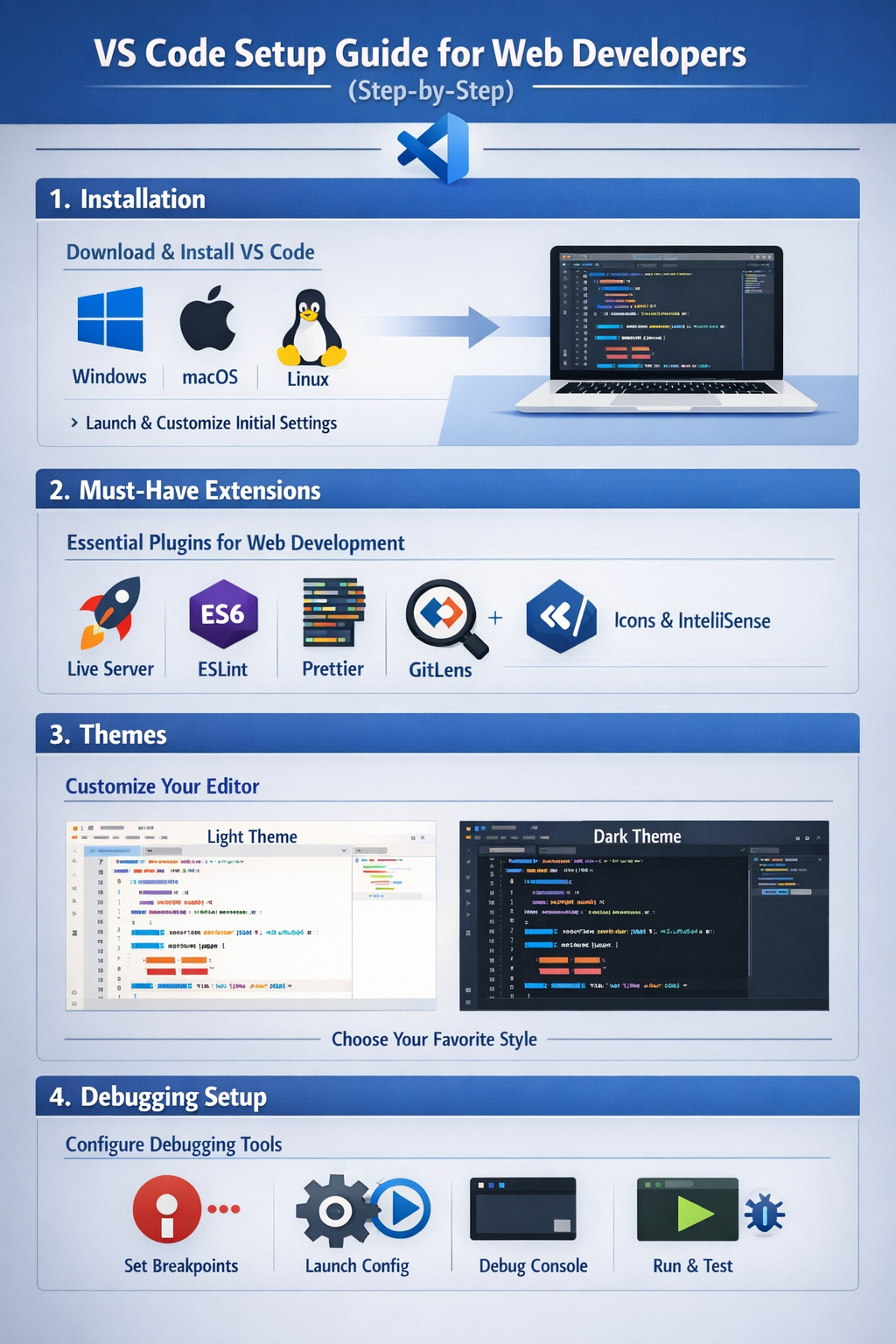
1. Installation
Steps:
- Download VS Code from official website
- Install and open the editor
- Set up basic preferences
Tip:
Always install the latest version for best performance.
2. Must-Have Extensions
Extensions enhance functionality.
Recommended Extensions:
- Live Server
- Prettier
- ESLint
- Auto Rename Tag
Benefits:
- Faster development
- Better code formatting
- Error detection
3. Themes
Themes improve readability and comfort.
Popular Themes:
- Dark themes
- Light themes
Tip:
Choose a theme that reduces eye strain.
4. Debugging Setup
Debugging helps find and fix errors quickly.
Steps:
- Use built-in debugger
- Set breakpoints
- Run and test code
Tip:
Practice debugging regularly.
Conclusion
A proper VS Code setup can significantly improve your development workflow. Use the right extensions, themes, and debugging tools to enhance productivity.
Call to Action
Set up your VS Code today and start coding efficiently.